

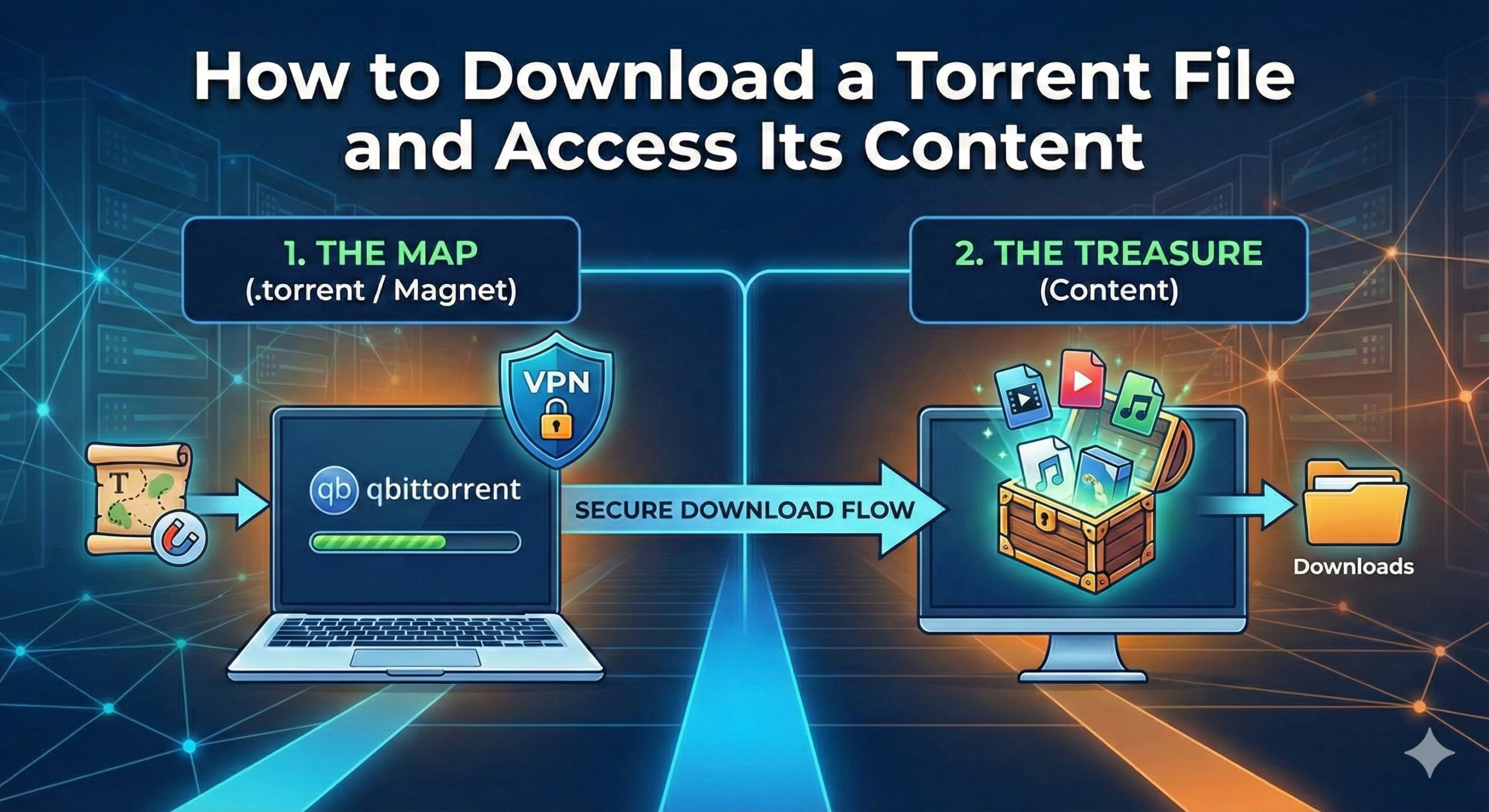
How to Download a Torrent File and Access Its Content.
The Golden Rule: Safety & Legality First
Before you begin, it is critical to understand two things:
-
Torrenting itself is legal: It is simply a technology for sharing files efficiently.
-
What you download matters: Always ensure you have the right to download the content (e.g., open-source software, public domain media).
Recommendation: Always use a VPN (Virtual Private Network) when torrenting. This hides your IP address from the public swarm, protecting your privacy from your Internet Service Provider (ISP) and potential malicious actors.
Part 1: The Concept (The Map vs. The Treasure)
Many beginners get confused here.
-
The
.torrentfile: Think of this as a treasure map. It is a tiny file (kilobytes in size) that doesn’t contain the movie or software itself. It only contains instructions on where to find the data. -
The Content: This is the actual “treasure” (video, game, ISO) that you want. You need a special program to read the map and go fetch the treasure for you.
Part 2: Step-by-Step Guide
Step 1: Install a Torrent Client
You cannot open a .torrent file with standard apps like Word or Media Player. You need a BitTorrent Client.
-
Best Choice: Utorrent or qBittorrent
Action: Download and install one of them.
Step 2: Find a Torrent File or Magnet Link
You need to find the content you want to download.
-
The .torrent file: You download a .torrent file from Library.
-
The Magnet Link: A magnet icon 🧲 on a website. This is a “file-less” link that opens your torrent client instantly without needing to download a
.torrentfile first. (hard to find)
Step 3: Load the Torrent
-
If you have a file: Double-click the
.torrentfile you downloaded. If Utorrent is installed, it should open automatically. -
If you have a link: Click the Magnet link (🧲) in your browser. A pop-up will ask permission to open Utorrent.
Step 4: Configure the Download
Once the client opens, you will see a dialogue box.
-
Save Path: Choose where you want the actual content to be saved (e.g., your
DownloadsorMoviesfolder). -
Content Selection: If the torrent contains multiple files (e.g., a season of a show with 10 episodes), you can uncheck the ones you don’t want to save space.
-
Click OK or Add.
Step 5: The Download Process
The download will start. You will see a status bar. Speed depends on “Health” (see Glossary below).
-
Downloading: You are grabbing pieces of the file from other users.
-
Seeding: Once the bar hits 100%, the status changes to “Seeding.” This means you have the full file and are now sharing it back to others. It is polite to “seed” for a little while (to a 1.0 ratio) to help the community, but you can stop this at any time.
Step 6: Access Your Content
-
Once the progress bar is 100%, right-click the torrent in the list.
-
Select “Open Destination Folder”.
-
There is your file! You can now watch, install, or use it just like any other file on your computer.